Career Typing
10-Key Finger Placement and Numeric Keypad Drills
Master 10-key finger placement on the numeric keypad using the home row 4-5-6 keys. Learn proper finger mapping, symbol reach, and timed keypad drills.
By ProTypingGames ·
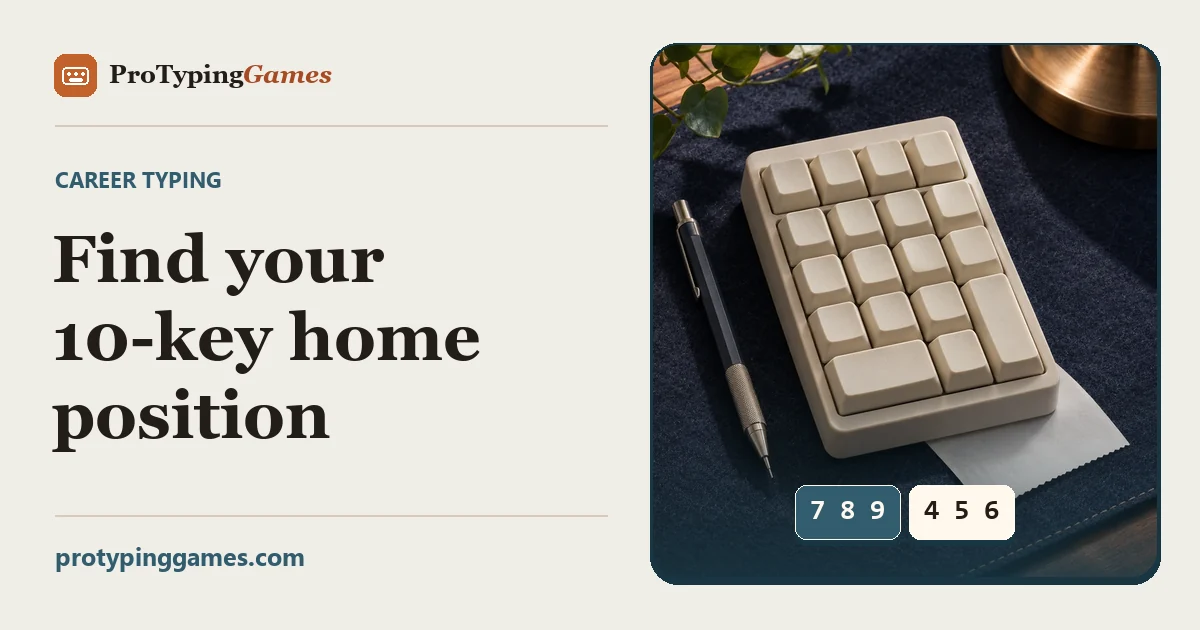
To use 10-key touch typing efficiently, anchor your right hand on the numeric keypad home row with your index finger on 4, your middle finger on 5, and your ring finger on 6. Your middle finger rests on the raised physical bump on the 5 key, which lets you locate the correct keys by feel alone without looking down at your hands.
Mastering this layout allows you to enter accounting figures, inventory codes, and spreadsheet data rapidly with a single hand. While many casual typists hunt and peck across the top row of numbers, the dedicated numeric keypad arranges digits into a compact, three-by-three block flanked by functional math symbols and control keys. Learning touch navigation on this cluster keeps your eyes focused entirely on your source documents or screen.
Keypad anatomy and right-hand mapping
A dedicated numeric keypad consists of seventeen standard keys arranged to minimize lateral hand motion. Your hand hovers over the cluster so that your fingers move straight up and down along fixed vertical lanes.
The middle tier serves as your home base. Place your index finger on 4, your middle finger on 5, and your ring finger on 6. Just as the F and J keys on a standard QWERTY layout feature small tactile ridges, the 5 key features a distinct plastic bump or bar. Before entering any sequence, brush your middle finger across the surface until you locate this landmark. Your other fingers naturally fall into position beside it.
Each finger owns a dedicated vertical column:
- The index finger handles the left column: 7, 4, 1, and the numeric keypad 0 key when designed as a double-width key on full desktop boards.
- The middle finger manages the center column: 8, 5, and 2.
- The ring finger controls the right column: 9, 6, 3, and usually drops down to handle the decimal point key.
- The pinky finger handles the far-right vertical rail: the Plus key, the large vertical Enter key, and the Minus key on layouts where it sits above the Plus key.
- The thumb handles the 0 key if your hand position makes curling your thumb inward more comfortable than stretching your index finger downward.
The top control row sits above the main number grid. It contains the Num Lock key, the forward slash for division, the asterisk for multiplication, and often the minus sign. Your index finger reaches up to strike Num Lock and division, while your middle finger reaches for multiplication, and your ring or pinky finger reaches for the minus operator.
Before starting any numeric entry, check your Num Lock indicator light. If Num Lock is turned off, the keypad functions as a secondary directional cluster: the 8, 4, 6, and 2 keys convert into navigation arrows, while 7, 1, 9, and 3 behave as Home, End, Page Up, and Page Down. Tapping Num Lock toggles these keys back to numeric output.
Hardware variations and locale formats
Physical keypads vary across hardware setups. Full-sized external mechanical and office keyboards feature a distinct, separated numeric block on the far right edge. This provides standard spacing and full-sized keys for the Enter, Plus, and zero keys.
Many modern laptops drop the numeric keypad entirely to save space, forcing typists to use the top row or purchase a separate USB numeric pad. Some compact laptops squeeze in a condensed keypad where the Enter key is standard-sized rather than double-height, or where the arrow keys invade the bottom row. If you regularly enter numbers on a portable laptop, a standalone numeric pad connected by USB gives you the standard physical spacing required to build reliable muscle memory.
Software and regional settings also change how the keypad behaves. In standard US spreadsheet environments, the decimal key between the zero and Enter keys prints a period. In many European and South American locales, operating systems map that same physical key to output a comma for fractional values. Similarly, spreadsheet programs like Microsoft Excel or Google Sheets treat Enter as a downward cell advance, while tapping Tab advances selection to the right. Because the standard numeric keypad lacks a Tab key, touch typists keep one hand on the mouse or reach their left hand to the main keyboard Tab key when entering tabular rows.
Building muscle memory with column drills
To build fluid speed, practice striking numbers without moving your wrist away from the home row. Keep your palm hovering slightly above the desk, maintaining curved fingers like a pianist. Avoid resting your wrist flat on the desk, which limits your vertical reach to the top and bottom tiers.
Work through these targeted column patterns to develop vertical muscle memory. Tap each sequence deliberately, saying the numbers softly in your head to reinforce the connection between the digit and finger motion.
Left column drill: Index finger (7, 4, 1)
- 4-7-4-1-4-7-1-4
- 1-4-7-4-1-7-4-1
- 7-4-1-4-7-1-4-7
- 4-1-7-1-4-7-4-1
Focus on extending your index finger straight up to strike 7 cleanly without pulling your middle finger off the 5 key. When dropping down to strike 1, curl your finger slightly inward toward your palm.
Center column drill: Middle finger (8, 5, 2)
- 5-8-5-2-5-8-2-5
- 2-5-8-5-2-8-5-2
- 8-5-2-5-8-2-5-8
- 5-2-8-2-5-8-5-2
Because your middle finger anchors the home position on the tactile bump, maintain light contact with 5 whenever striking 8 or 2.
Right column drill: Ring finger (9, 6, 3, decimal)
- 6-9-6-3-6-9-3-6
- 3-6-9-6-3-9-6-3
- 6-3-9-3-6-.-3-6
- 9-6-3-.-6-9-3-.
Your ring finger naturally possesses less independent dexterity than your index finger. Keep your strokes deliberate and prevent your whole wrist from twisting outward when reaching down for the decimal key.
Adding operators and practical data entry
Real-world entry rarely consists solely of single-column strokes. Accounting, point-of-sale entries, and inventory tasks require jumping across columns, adding decimal places, and confirming entries with the Enter key.
Your pinky finger handles confirmation. It rests beside the home row, hovering near the Plus key, and drops down to hit Enter after each value. Practice these standard transactional formats to train horizontal transitions:
Currency and decimal entry
- 12.50 [Enter]
- 40.95 [Enter]
- 78.10 [Enter]
- 305.25 [Enter]
- 614.80 [Enter]
- 920.05 [Enter]
Numeric codes and serial numbers
- 4081 [Enter]
- 9520 [Enter]
- 7364 [Enter]
- 1839 [Enter]
- 5207 [Enter]
- 6418 [Enter]
When working on mathematical formulas, your pinky and index fingers stretch to the top operator tier. To test basic sequential digits alongside standard punctuation, try the Numbers typing test, which runs for 60 seconds and builds top-tier coordination.
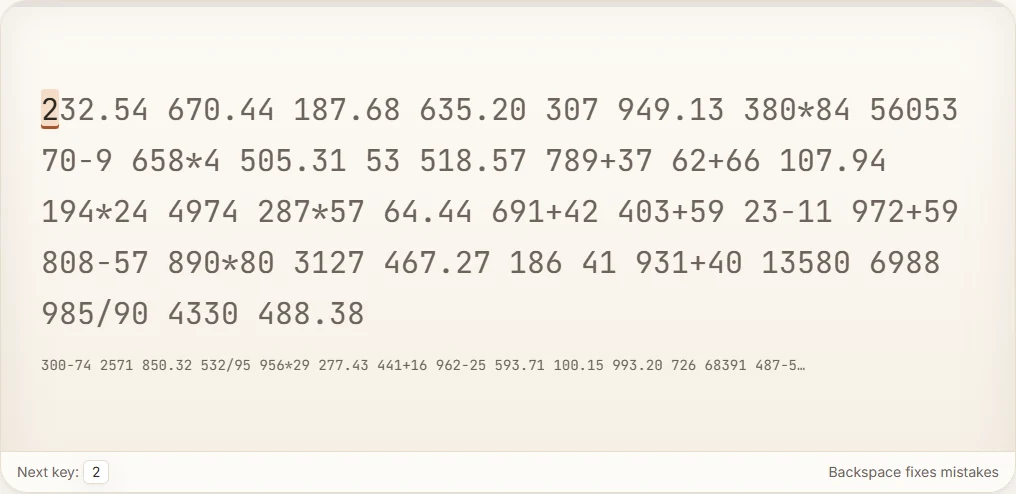
For real arithmetic integration, take the 10-key typing test. This test also runs for 60 seconds but actively mixes arithmetic operators alongside numeric values, challenging your hand to leave the home cluster and strike symbols accurately under time constraints.
Understanding test metrics and tracking your progress
When evaluating keypad performance, corporate hiring teams and testing platforms measure speed differently. Formal enterprise testing often measures output in Keystrokes Per Hour (KPH), counting every individual button press completed over a sustained period. In contrast, online typing platforms report results in Words Per Minute (WPM) or Correct Characters Per Minute (CPM).
On the ProTypingGames platform, a standard 60-second test begins registering time the moment you input your first accepted keystroke. The scoring engine calculates your speed based on standardized character units:
- Raw WPM: Total retained typed characters divided by 5, then divided by the test time in minutes.
- Net WPM: Correctly matched retained characters divided by 5, then divided by the test time in minutes.
- Accuracy: Successful attempts divided by total scored attempts multiplied by 100, expressed as a rounded percentage.
Corrected-but-deleted characters do not count toward your retained total, and fixing an error with Backspace does not erase that initial incorrect attempt from your accuracy score. Backspace works across spaces within your current active screen, but cannot return you to completed pages.
If you are practicing for an office typing assessment that quotes standards in KPH, you will need to convert your scores. You can read our detailed breakdown on converting WPM to KPH to see how standard character formulas translate into keystroke metrics.
To track your progress, build a simple practice log. Record your scores across several sessions to spot trends in your accuracy and raw entry speed.
Sample progress tracker
| Session | Drill Type | Duration | Accuracy (%) | Raw WPM | Net WPM | Notes |
|---|---|---|---|---|---|---|
| Day 1 | Column Isolations | 60 sec | 91% | 24 | 22 | Hesitation on ring finger reaches |
| Day 2 | Decimal & Currencies | 60 sec | 94% | 28 | 26 | Reaching 0 with thumb feels smooth |
| Day 3 | 10-Key Mixed Symbols | 60 sec | 89% | 27 | 24 | Missed division slash twice |
| Day 4 | 10-Key Mixed Symbols | 60 sec | 96% | 32 | 31 | Clean Enter key strikes with pinky |
| Day 5 | Serial Codes Only | 60 sec | 98% | 36 | 35 | Kept eyes entirely off the keypad |
Focus on keeping your accuracy above 95% before trying to push your physical speed. Rushing leads to misplaced finger positioning, and because the numeric keypad keys are grouped closely together, drifting by just one column can spoil an entire row of data.
Locate the physical bump on your 5 key right now, set your right-hand home row position, and complete a one-minute session on the numeric keypad without looking down at your fingers.
Put it into practice
The fastest way to improve is to play. Jump into a free typing game and try it now.
Play free typing games