Typing Drills
Typing Symbols for Coding, From Braces to Backticks
Master coding symbols on US QWERTY keyboards with targeted drills for curly braces, backticks, brackets, and syntax special characters.
By ProTypingGames ·
Building speed with programming symbols requires untangling muscle memory from language syntax so your fingers locate brackets, backticks, and operators automatically. Training on dedicated symbol drills and code-focused typing prompts lets you master reach distances across the number row and upper right keyboard cluster without pausing your thought process while writing code.
Symbol fluency versus coding logic
Typing code efficiently is entirely separate from understanding computer science principles, system architecture, or algorithm design. Symbol fluency refers strictly to the motor skill of moving your digits to secondary characters, shift-layer punctuation, and bracket pairs without looking down or breaking your train of thought. High typing speed on prose does not automatically translate to code editing because standard text rarely uses double quotes, square brackets, dollar signs, backticks, or vertical pipes with high frequency.
When standard prose typists switch to source files, their speed often plummets because their hands leave the home row to hunt for rarely used keys. A developer might spend considerable time analyzing logic, but when it comes time to type an implementation, syntax errors and typing hesitation create physical friction. Building mechanical confidence with special characters eliminates that mechanical bottleneck. You can evaluate your baseline speed on mixed syntax by taking a dedicated Punctuation Typing Test to see how non-alphanumeric characters affect your overall rhythm.
Navigating the US QWERTY symbol locations
All key positions described here refer specifically to standard US QWERTY layout hardware. Programmers on this layout rely heavily on the right pinky finger and the top number row. Because symbols are distributed unevenly across the upper right section of the board, understanding exact finger assignments is essential for building fluid motion.
The backtick and tilde share a single key located directly below the Escape key on the top left corner of the keyboard. Reaching it requires extending the left pinky upward and to the left.
The right pinky handles a heavy workload in almost every modern language. It covers the bracket keys, curly braces, double quotes, single quotes, forward slash, question mark, backslash, vertical pipe, plus sign, and equals sign.
The number row requires vertical stretches from both hands:
- Shift plus 1 produces the exclamation mark, assigned to the left pinky.
- Shift plus 2 produces the at sign, assigned to the left ring finger.
- Shift plus 3 produces the hash symbol, assigned to the left middle finger.
- Shift plus 4 produces the dollar sign, assigned to the left index finger.
- Shift plus 5 produces the percent symbol, assigned to the left index finger.
- Shift plus 6 produces the caret symbol, assigned to the right index finger.
- Shift plus 7 produces the ampersand, assigned to the right index finger.
- Shift plus 8 produces the asterisk, assigned to the right middle finger.
- Shift plus 9 and Shift plus 0 produce open and closed parentheses, assigned to the right ring and right pinky fingers respectively.
Mastering these reaches requires keeping your hands anchored near the home row rather than hovering or floating the entire wrist across the board. When reaching for the right-hand bracket keys, pivot at the wrist slightly while keeping your middle fingers near their home position.
Practice drills for JavaScript syntax
JavaScript relies heavily on curly braces, square brackets, template literals with backticks, arrow functions, and strict equality operators. These constructs require alternating between Shift key holds and rapid symbol entry.
Here is a short, valid JavaScript code snippet that features typical syntax patterns:
const formatUser = (name, roles = []) => {
  const isAdmin = roles.includes('admin');
  return `User: ${name} (${isAdmin ? 'Admin' : 'Member'})`;
};
To build muscle memory for these specific key sequences, isolate the syntax tokens into repeatable typing chains. Execute each line slowly, paying attention to pinky extensions for braces and brackets:
Drill JS-1: Braces and arrow functions
() => {} () => {} () => {} () => {} () => {}
Drill JS-2: Template literals and interpolation
`${}` `${}` `${}` `${}` `${}`
Drill JS-3: Array brackets and object literals
[{ key: 'val' }] [{ key: 'val' }] [{ key: 'val' }]
Drill JS-4: Comparison and logical operators
=== !== && || >= <= === !== && || >= <=
When typing JavaScript, pay close attention to the shift key timing. Releasing the Shift key too late turns a backtick into a tilde or an open brace into an open bracket.
Practice drills for Python syntax
Python code uses indentation rather than curly braces for block scoping, but it relies extensively on colons, square brackets, parentheses, underscores, and dictionary notation.
Here is a short, valid Python snippet demonstrating standard structural symbols:
def process_scores(data: dict) -> list:
    return [value * 2 for key, value in data.items() if key.startswith("score_")]
Python typing requires swift transitions between lower-case identifiers, underscores, and structural symbols. Execute these targeted drills to train the necessary hand movements on US QWERTY:
Drill PY-1: Function definitions and return hints
def func(arg: int) -> str:
Drill PY-2: List comprehensions and indexing
[x for x in data if x[0] == '_']
Drill PY-3: Dictionary literals and key lookups
{"status": 200, "data": values.get("items")}
Drill PY-4: Underscores and magic methods
__init__ __str__ __repr__ __name__ __main__
The underscore key sits to the right of the zero key on the top row, requiring a stretch with the right pinky while holding Shift with the left hand. Building a clean Shift-and-reach habit for the underscore prevents unwanted hyphens from disrupting your variable names. You can refine capital letters and shift-layer coordination through focused practice routines like Capital Letter Typing Practice to improve your overall shift-key speed.
Mastering rare symbols and backticks
Certain keys appear infrequently in conversational text but continuously during configuration, shell scripting, and code editing. The backtick, vertical pipe, backslash, and tilde are notorious for throwing off a developer’s pace.
The backtick symbol is essential for markdown code blocks, shell execution, and string interpolation in modern web languages. Because it resides on the far upper left corner, many typists accidentally hit the tab key or number 1 key.
The vertical pipe and backslash share a key on US QWERTY keyboards, located above the Enter key or next to the bracket keys. The vertical pipe requires holding Shift while striking this key with the right pinky finger.
Try these specialized rows to build spatial awareness for isolated symbols:
- Pipe and backslash drill:
| \ | \ || \\ |\| \|/ | \ | \ - Backtick and tilde drill:
` ~ ` ~``` ~~~ `~` ~`~ - Angle brackets and assignment drill:
< > <= >= -> => <> < > - Arithmetic assignment drill:
+= -= *= /= %= === !==
Maintain a steady rhythm rather than trying to burst through these drills. Speed develops as a natural byproduct of eliminating hesitation.
Code typing mechanics and auto-indentation
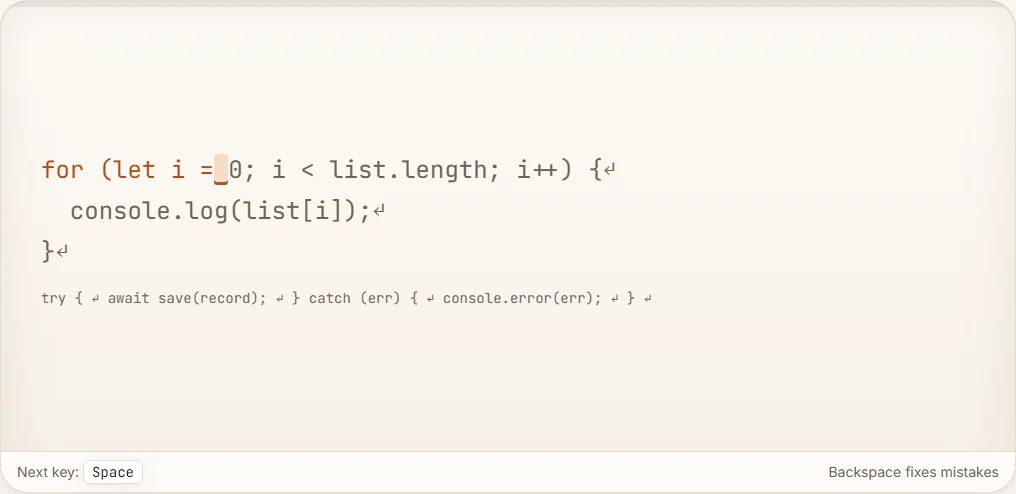
Real-world code entry differs from standard text processing in how tools handle line breaks and spacing. When practicing code typing on ProTypingGames, selecting the interactive Coding Typing Test provides an environment designed for syntax input. In this environment, the application automatically accepts Enter when prompted by the line structure and inserts the appropriate indentation spaces for the next line. This allows you to focus purely on the accuracy of your code text and symbols without manually tapping the space bar multiple times at the start of every block.
Understanding how typing scoring works helps you track your progress accurately. In ProTypingGames timed tests, the timer begins on the very first accepted typing input after you launch the test. Scoring metrics follow precise, standardized formulas based on raw character input and accuracy.
Characters are counted using standard implementation units. A standard typing word is defined universally as 5 character units.
Raw WPM is calculated using this exact formula: Raw WPM = (Total retained typed character units / 5) / (Time in minutes)
Net WPM accounts for errors by evaluating only correctly matched characters: Net WPM = (Correctly matched character units / 5) / (Time in minutes)
Accuracy reflects your attempt precision using this formula: Accuracy = (Successful attempts / All scored attempts) * 100
When computing accuracy, the result is rounded to the nearest whole percentage. It is important to note that fixing a typo with the Backspace key does not erase the initial incorrect attempt from the accuracy calculation; that mis-stroke still counts as an attempt. However, corrected-but-deleted entries are excluded from the retained raw character count. Backspace works across spaces within the active screen area in every ProTypingGames test, though you cannot navigate backward to completed pages.
Step-by-step score calculation examples
To understand how speed and accuracy are computed during a coding session, let’s walk through two detailed numeric examples based on standard ASCII input.
Example 1: High-accuracy code entry
Suppose a user completes a 60-second (1.0 minute) coding test. During the test, the user types a total of 300 character units into the active screen.
Out of all keystroke attempts:
- Successful attempts: 294
- Total scored attempts: 300
- Retained typed character units: 300
- Correctly matched character units: 290
We calculate the metrics as follows:
-
Raw WPM: (300 retained character units / 5) / 1.0 minute = 60 Raw WPM
-
Net WPM: (290 correct character units / 5) / 1.0 minute = 58 Net WPM
-
Accuracy Percentage: (294 successful attempts / 300 total attempts) * 100 = 98% Accuracy
Example 2: Three-minute test with backspace corrections
Now consider a three-minute (3.0 minutes) typing session where a user inputs code with several typos that were corrected along the way.
Input data over 3.0 minutes:
- Retained typed character units: 750
- Correctly matched character units: 720
- Successful attempts: 735
- Total scored attempts: 800
We compute the metrics step by step:
-
Raw WPM: (750 retained character units / 5) / 3.0 minutes = 150 / 3.0 = 50 Raw WPM
-
Net WPM: (720 correct character units / 5) / 3.0 minutes = 144 / 3.0 = 48 Net WPM
-
Accuracy Percentage: (735 successful attempts / 800 total attempts) * 100 = 91.875%, which rounds to 92% Accuracy
Notice that net WPM is never derived by simply multiplying raw WPM by the accuracy percentage. Net WPM depends strictly on the count of correctly matched character units divided by 5 and the test duration.
Daily practice routine for symbol mastery
To build long-term speed with programming symbols, integrate ten minutes of focused symbol training into your daily routine before opening your code editor.
Spend the first three minutes running isolated symbol rows, focusing on clean pinky stretches for braces, backticks, and brackets on your US QWERTY board. Dedicate the next four minutes to short JavaScript or Python snippets, letting auto-indentation manage your block spacing while you maintain a continuous typing cadence. Spend the final three minutes reviewing your results to ensure your accuracy stays consistently high, as erasing errors mid-code disrupts your rhythm far more than slow, deliberate keystrokes.
Open a code typing session on ProTypingGames right now, select a symbol-heavy language block, and run your first benchmark test without looking down at your keyboard.
Put it into practice
The fastest way to improve is to play. Jump into a free typing game and try it now.
Play free typing games